How to Connect Slack to adintel (Step by Step, With Screenshots)
Get every new competitor ad posted to a Slack channel. Five minutes, no developer: create the webhook in Slack, paste it on the Team page, send a test.
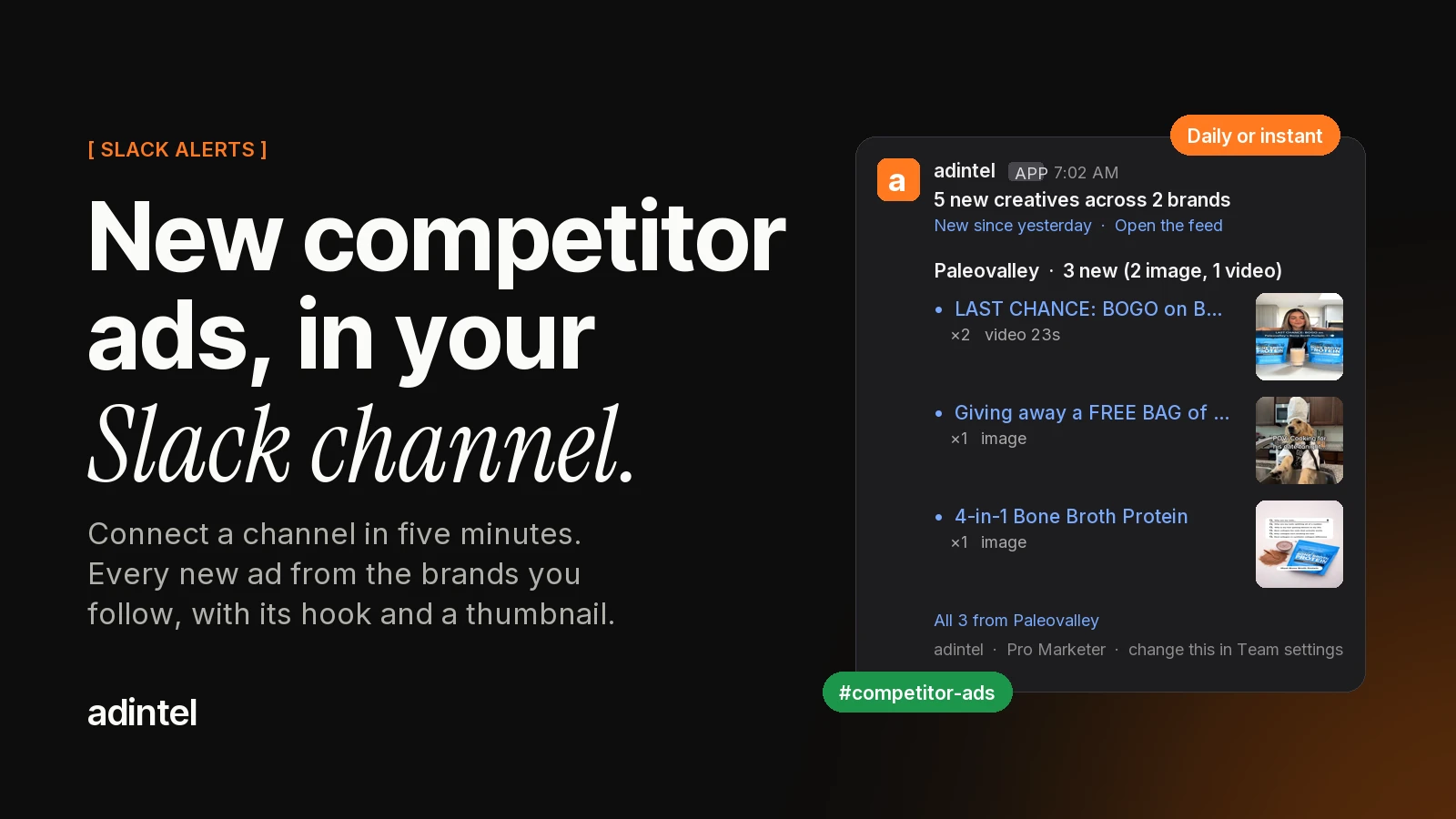
When a competitor launches a new ad, the useful moment is the day it appears, not the week after. adintel can post every new creative from the brands your workspace follows into a Slack channel, with the hook, the format and a thumbnail, so the whole team sees it without opening another tab.
Connecting Slack takes about five minutes and needs no developer. This guide walks through it with screenshots. There are two halves: in Slack you create a small app and give it a webhook for one channel, and in adintel you paste that webhook on the Team page.
What you need
- A Slack workspace where you can add apps. Most workspaces allow any member to do this; some restrict it to admins.
- An owner or admin seat in your adintel workspace.
- Digests are included on the Team plan and up.
Part 1: get a webhook from Slack
Step 1: open Slack's app page
Go to api.slack.com/apps and sign in if asked. This page lists the apps your workspace has created. If adintel is already there from an earlier setup, click it and skip to step 3.
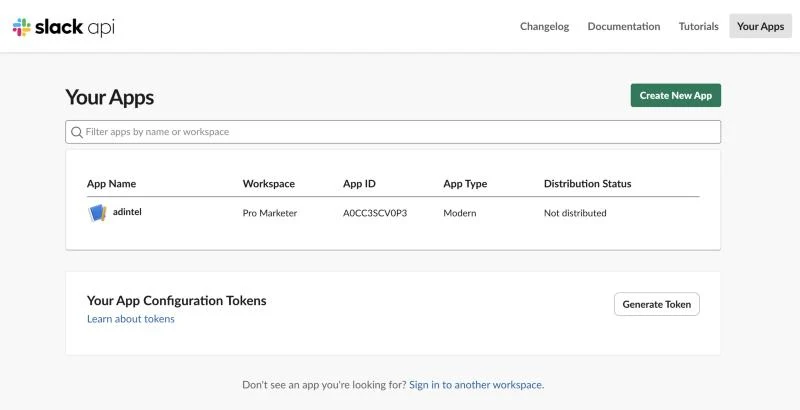
Step 2: create an app called adintel
Click Create New App. In the dialog, choose Blank app, name it adintel, pick your workspace and click Create. Nothing is installed yet; the app is just a container for the webhook.
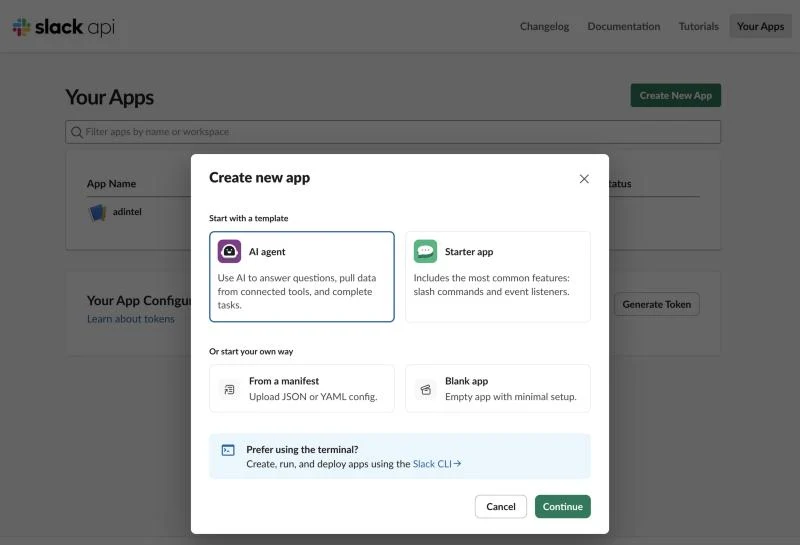
Step 3: switch on Incoming Webhooks
In the app's left menu click Incoming Webhooks, then turn the Activate Incoming Webhooks switch to On. A webhook is a private web address: anything posted to it appears in one Slack channel as the app.
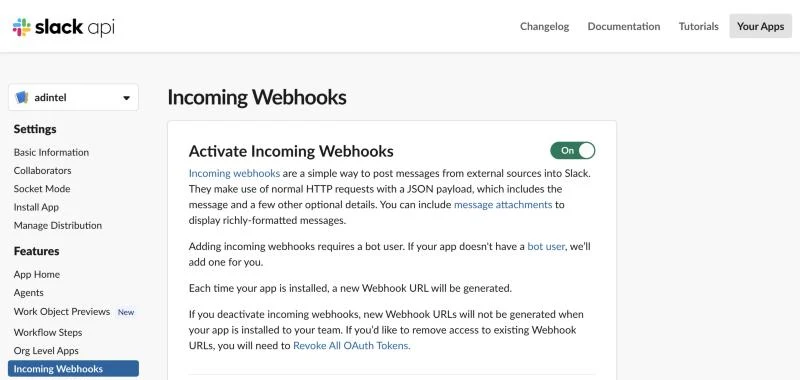
Step 4: choose the channel
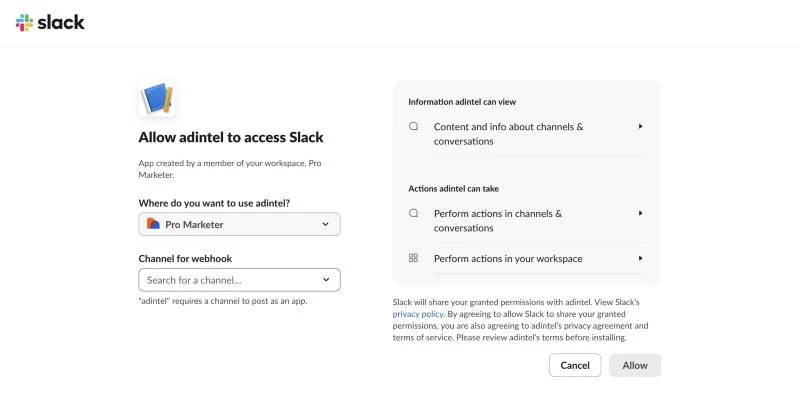
Scroll down and click Add New Webhook. Slack opens an authorization page. Under Channel for webhook, pick the channel that should receive the alerts, for example #competitor-ads, then click Allow. Private channels work too, as long as you are a member.
Step 5: copy the webhook URL
Back on the Incoming Webhooks page, the new webhook is listed with its channel. Click Copy next to it.
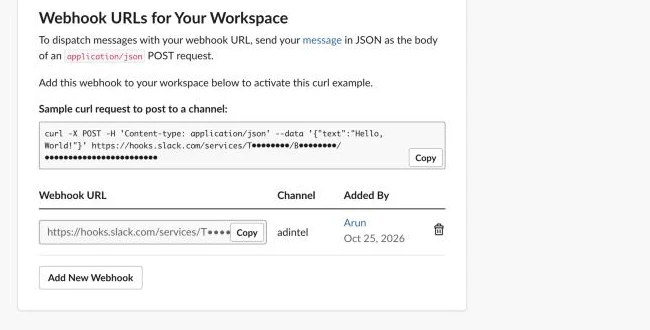
Treat this URL like a password. Anyone who has it can post into that channel. Don't paste it into tickets, chats or screenshots. If it ever leaks, delete it here with the bin icon and make a new one.
Part 2: paste it into adintel
Step 6: open Team settings
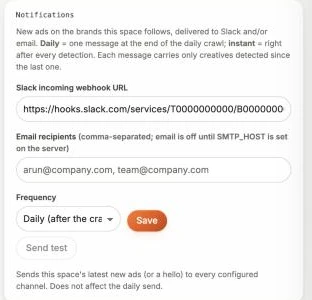
In adintel, open Settings → Team and find the Notifications box. Only owners and admins see it.
Step 7: paste, choose a frequency, save
Paste the URL into Slack incoming webhook URL. Choose how often you want messages:
- Daily: one message after each scheduled refresh of your followed brands, grouped by brand.
- Instant: a message as soon as new ads are detected.
Click Save. After saving, adintel shows only the end of the address, never the whole thing.
Step 8: send a test
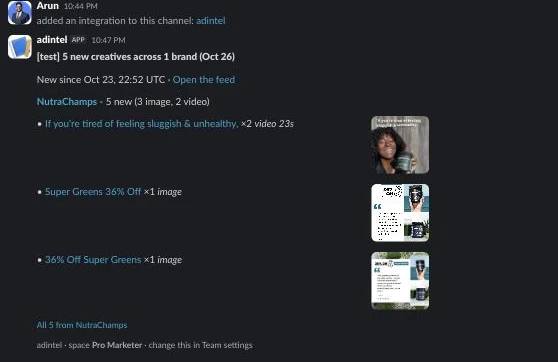
Click Send test. adintel sends your workspace's latest new ads (or a short hello if there are none yet) and shows Slack's answer on the page. Within a few seconds the message appears in the channel.
What arrives, and when
Each message covers only the brands your workspace follows and only the ads detected since the previous message, so nothing is sent twice. A new setup starts from now; it does not send a backlog of older ads. For each brand you get the count of new creatives and the top three hooks, each with a thumbnail and a link back to the ad in adintel.
A day with no new ads sends nothing. If a delivery fails, the same ads are retried with the next message, and the Notifications box shows the last delivery with its time and any error.
One channel per client
Agencies usually want each client's ads in that client's channel. Every adintel workspace has its own Notifications box, so the pattern is one webhook per channel: repeat step 4 for each channel on the same Slack app, then paste each URL into the matching workspace. Email recipients can be added alongside Slack, or instead of it.
If something doesn't work
- "Test failed" on the Team page: the text after it is Slack's answer. The usual causes are an incomplete paste or a webhook made in a different Slack workspace.
- The message landed in the wrong channel: the webhook was added to that channel in step 4. Make a new webhook for the right channel.
- Nothing arrives on the daily schedule: check that the workspace follows at least one brand under Brand tracking, and that the day had new ads.
- Slack says "This website uses cookies" or asks you to sign in again: that's Slack's own page; sign in and continue.
Still stuck? Email [email protected] with your workspace name and the "Last delivery" or "Test failed" line from the Notifications box. Never send the full webhook URL.